Visualizing Mandelbrot set
December 25, 2022
Note: This post requires you to have a basic understanding of complex numbers. If you don’t know what complex numbers are, you can read about them here.
Introduction
I love conding, and I also have a passion for mathematics. I’ve always wanted to combine my love of coding and my knowledge of mathematics to create interesting but also educational visualization, something similars to the works of 3Blue1Brown and The Coding Train.
I’ve always been fascinated by fractals. They are geometric entities with infinie amount of roughness. They have fractional dimensions (not 1D, 2D, or 3D). Among of them, the Mandelbrot set is one of the well-known fractals. Since the generation process is simple and straightforward, it is an great entry point for people who want to code their own fractal visualizations. However, there are some challenges when rendering fractals in real time, and I’ll be explaining how to overcome along the coding process.
For the visualization tool, I decide to choose PIXI.js, a powerful 2D rendering engine for the web that supports WebGL. More importantly, we will create some shaders and laverage the GPU to render the fractal.
What is Mandelbrot set?
The Mandelbrot set is a fascinating fractal discovered by Benoit Mandelbrot in 1980. To generate the set, we need series of complex numbers starting from and recursively apply the function , where is a compelx constant.
In genral, we have a series of complex numbers
This series will eventually converge to a point, oscillate, or diverge to infinity and depends on the choice of constant . If the series diverges to infinity, then the point is not in the Mandelbrot set. On the other cases, is in the set.
Visualizing the Mandelbrot set
To visualize the Mandelbrot set, we need to generate a grid of complex numbers, and then apply the function to each of them.
The Meanderbrot set has a very interesting property. It is bounded by a circle of radius 2 centered at the origin. This means that if the absolute value of the complex number is greater than 2, then the series will diverge to infinity. This is a very important property that we can use to speed up the rendering process.
Here’s the pseudocode for the algorithm, given a pixels array and a maximum iteration number, we would paint the pixel white if the point is in the set, and black otherwise.
def mandelbrot(complex_plane, max_iter=100):
  for point in complex_plane:
    c = complex_point(pixel)
    z = 0
    for i in range(max_iter):
      z = z ^ 2 + c
      if abs(z) > 2:
        point.color = black
    point.color = white
However, this algorithm is very slow. The reason is that we have to render each pixel individually, and the number of pixels is very large. To speed up the process, we can use the GPU to render the pixels in parallel. This is where WebGL comes in.
Rendering with PIXI.js and WebGL
As mentioned before, I choose to use PIXI.js to render the visualization, since it is powerful 2D graphic engine that supports WebGL. I intended to use some wrapper such as react-pixi or svelte-pixi. However, I want my canvas to be responsive based on the window size, and neither of them cannot provide me that ability.
Set up the canvas
First, I create a container div element width a flexible dimension and a canvas element inside the container.
For the next step, I bind the width of the container and the canvas element to the width and canvas variables with the bind directive.
<script>
  ...
  let width: number;
  let canvas: HTMLCanvasElement;
  ...
</script>

<div class="w-full" bind:width={width}> {/* container */}
  <canvas bind:this={canvas}>
</div>
Then, I use Svelte onMount function to initialize an PIXI application when all the components render on the screen.
I also use reactive statements to update the canvas size when the window size changes as hightlight in the snippet below.
<script>
  ...
  let width: number;
  let canvas: HTMLCanvasElement;
  let app: PIXI.Application;
  ...
  const ASPECT_RATIO = 4 / 3;

  onMount(() => {
    app = new PIXI.Application({
      view: canvas,
      width,
      height: width / ASPECT_RATIO,
      antialias: true,
      transparent: true,
      resolution: 1,
    });
  });

  $: {
    app?.renderer?.resize(width, width / ASPECT_RATIO);
  }
</script>

...
Now, we have a canvas that is responsive to the window size. However, the canvas is still empty. We need to add some content to it.
We need to create a PIXI.Container object and add it to the application stage.
<script>
  ...
  let width: number;
  let canvas: HTMLCanvasElement;
  let app: PIXI.Application;
  let container = new PIXI.Container();
  ...
  const ASPECT_RATIO = 4 / 3;

  onMount(() => {
    app = new PIXI.Application({
      view: canvas,
      width,
      height: width / ASPECT_RATIO,
      antialias: true,
      transparent: true,
      resolution: 1,
    });
    app.stage.addChild(container);
    container.filterArea = app.renderer.screen;
  });
  ...
</script>
The setup is done. Now, we can starting coding the visualization.
Mandelbrot shaders
In order to render the Mandelbrot set, we need to create a shader programs, one for the vertex shader and one for the fragment shader.
We will discuss how to create the shaders later. For now, let’s assume that we have a vertex shader file base.vert and a fragment shader file mandelbrot.vert.
Let’s use them in the program.
First, we needs to imports the shaders program with the query params ?raw to get the raw text of the shader files.
We these uniform variables
iterationsthat controls the maximum number of iterations.zoomthat controls the zoom level.translatethat controls the offset of the viewport. We can add the shaders and update the shaders with reactive statements
<script>
  ...
  import baseVert from '.lib/base.vert?raw';
  import mandelbrotFrag from '.lib/mandelbrot.frag?raw';
  ...
  let container = new PIXI.Container();
  let iterations = 100;
  let zoom = 1;
  let translate = [0, 0];
  ...

  $: {
    const filter = new PIXI.Filter(baseVert, mandelbrotFrag, {
      iterations,
      zoom,
      translate: new Float32Array(translate), // Array in uniforms must be Float32Array
    });
    container.filters = [filter];
  }
</script>
Now, we need to program the shaders.
attribute vec2 aVertexPosition;

uniform mat3 projectionMatrix;
varying vec2 vTextureCoord;
varying vec2 uv;

uniform vec4 inputSize;
uniform vec4 outputFrame;

uniform vec2 translate;
uniform float zoom;

vec4 filterVertexPosition(void)
{
  vec2 position = aVertexPosition * max(outputFrame.zw, vec2(0.)) + outputFrame.xy;

  return vec4((projectionMatrix * vec3(position,1.)).xy, 0., 1.);
}

vec2 filterTextureCoord(void)
{
  return aVertexPosition*(outputFrame.zw*inputSize.zw);
}

vec2 transform(in vec2 normalized) {
  vec2 p = normalized - vec2(0.5, 0.5);

  float ratio = inputSize.x / inputSize.y;
  if (ratio > 1.) {
    p.x *= ratio;
  } else {
    p.y /= ratio;
  }
  p *= 3.;

  p /= zoom;
  p += translate;

  return p;
}

void main(void)
{
  gl_Position=filterVertexPosition();
  vTextureCoord=filterTextureCoord();
  uv = transform(vTextureCoord);
}
The code snippet below is for the vertex shader, and it’s pretty hard to understand. Here, I want you focus more the variables vTextureCoord and uv, and the function transform.
After line 45, vTextureCoord now represents the coordinate system on the canvas, where the top left corner is and the bottom right corner is . Like the image below
After line 46, we transform the coordinate system of vTextureCoord and store in uv so that now the origin is in the middle of the canvas,
and the shorter side of the canvas (the height in this case) is 6 units long, ranging from -3 to 3.
Now, we can pass uv to the fragement shader and use as the point in the complex plane. Using the pseudocode mentioned before, we can write the fragment shader as below.
Futhermore, let’s assume there is a function called color to color the point based on the last values of z and number of iterations.
precision mediump float;

varying vec2 uv;
uniform float iterations;

const float MAX_ITERATION = 128.;

...

void main() {
  vec2 z = vec2(0.0);
  float iter = 0.0;
  for (float i = 0.0; i < MAX_ITERATION; i++) {
    iter = i;
    z = vec2(z.x * z.x - z.y * z.y, 2.0 * z.x * z.y) + uv;
    if (length(z) > 2.0 || iter > iterations) {
      break;
    }
  }
  gl_FragColor = vec4(color(z, iter), 1.);
}
Now, let’s implement the color function. Let’s consider the easiest way to color the point, which is to color it white if it’s in the set, and black if it’s not.
You can select the Binary display mode to see the result.
vec3 color(vec2 z, float iter) {
  if (iter < iterations) return vec3(0.0);
  else return vec3(1.0);
}
However, only black and white is not enough. Let’s add some color in between, with some few rules.
- If the point can not escape the circle of radius 2, color it black
- If the point already outside of circle of raduis 2, color ot black.
- Any colors between black and white will indicates how many iterations it takes to escape the set.
And now, we have a new version of color function. You can switch to the Hollow mode to see the result.
vec3 color(vec2 z, float iter) {
  if (iter < iterations - 1.) return vec3(sqrt(iter / iterations));
  else return vec3(0.0);
}
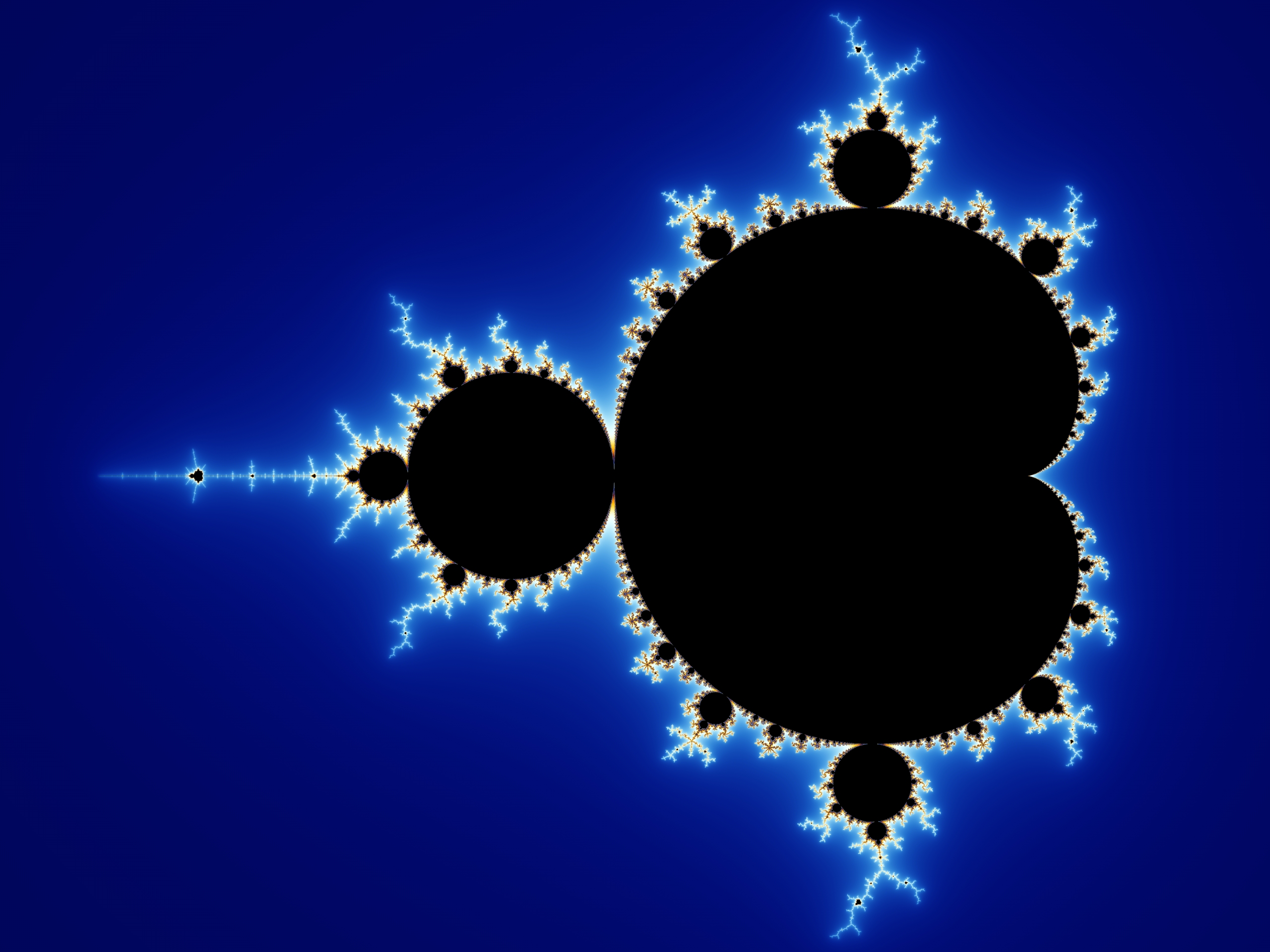
Now, we can see the Mandelbrot set in grayscale color. However, the image is not visually appeal.
Let’s make a newer version of color function to add some color to it.
vec3 color(in vec2 z, in float iter) {
  if (iter < iterations - 1.) {
    float v = log(iter + 1.5 - log(log2(length(z)))) / 3.4;
    if (v < 1.) {
      return vec3(pow(v, 4.), pow(v, 2.5), v);
    } else {
      v = max(1.0, 2.0 - v);
      return vec3(v, pow(v, 1.5), pow(v, 3.0));
    }
  } else return vec3(0.0);
}
Now, we have the get the image of Mandelbrot set fairly similar to the one in Wikipedia.
Bonus: The Julia Set
The Julia set is a fractal is the fractal that use the same recursive function as the Mandelbrot set. However, the inttrative process to generate Julia is quiet different from the Julia set. Instead of starting with initial and plotting the constant , we would start with arbritary and plot the initial value . This leads to different choice of constant resulting in different Julia set.
For the rendering, we gonna use the same vertex shader as the Mandelbrot set. However, the shader is little different as we need to pass constant uniform to the shader.
precision mediump float;

varying vec2 uv;
uniform vec2 constant;
uniform float iterations;

...

void main() {
  // z_0 is the plotting point
  vec2 z = uv;
  float iter = 0.0;
  for (float i = 0.0; i < MAX_ITERATION; i++) {
    iter = i;
    // f(z) = z^2 + c
    z = vec2(z.x * z.x - z.y * z.y, 2.0 * z.x * z.y) + constant;
    if (length(z) > 2.0 || iter > iterations) {
      break;
    }
  }
  gl_FragColor = vec4(color(z, iter), 1.);
}
That’s it. Now we can very beautiful visualization of the Mandelbrot and Julia set. We have cover so many topics in this article, from mathemttics to computer graphics. I hope you enjoy this article and learn something new. Happy coding!